> ## Documentation Index
> Fetch the complete documentation index at: https://openrouter.ai/docs/llms.txt
> Use this file to discover all available pages before exploring further.
# Google BigQuery
> Send traces to Google BigQuery
[Google BigQuery](https://cloud.google.com/bigquery) is a serverless cloud data warehouse. OpenRouter can stream traces directly into a BigQuery table for custom analytics, long-term storage, and business intelligence. Each trace becomes exactly one row, so the table can be queried directly without grouping or deduplicating by `trace_id`.
## Step 1: Choose a project and enable the BigQuery API
1. Open the [Google Cloud Console](https://console.cloud.google.com/) and create or select a project.
2. Copy the project ID (not the project name). It is the lowercase identifier shown in **IAM & Admin > Settings**.
3. In **APIs & Services > Library**, search for **BigQuery API** and click **Enable**.
## Step 2: Create the dataset
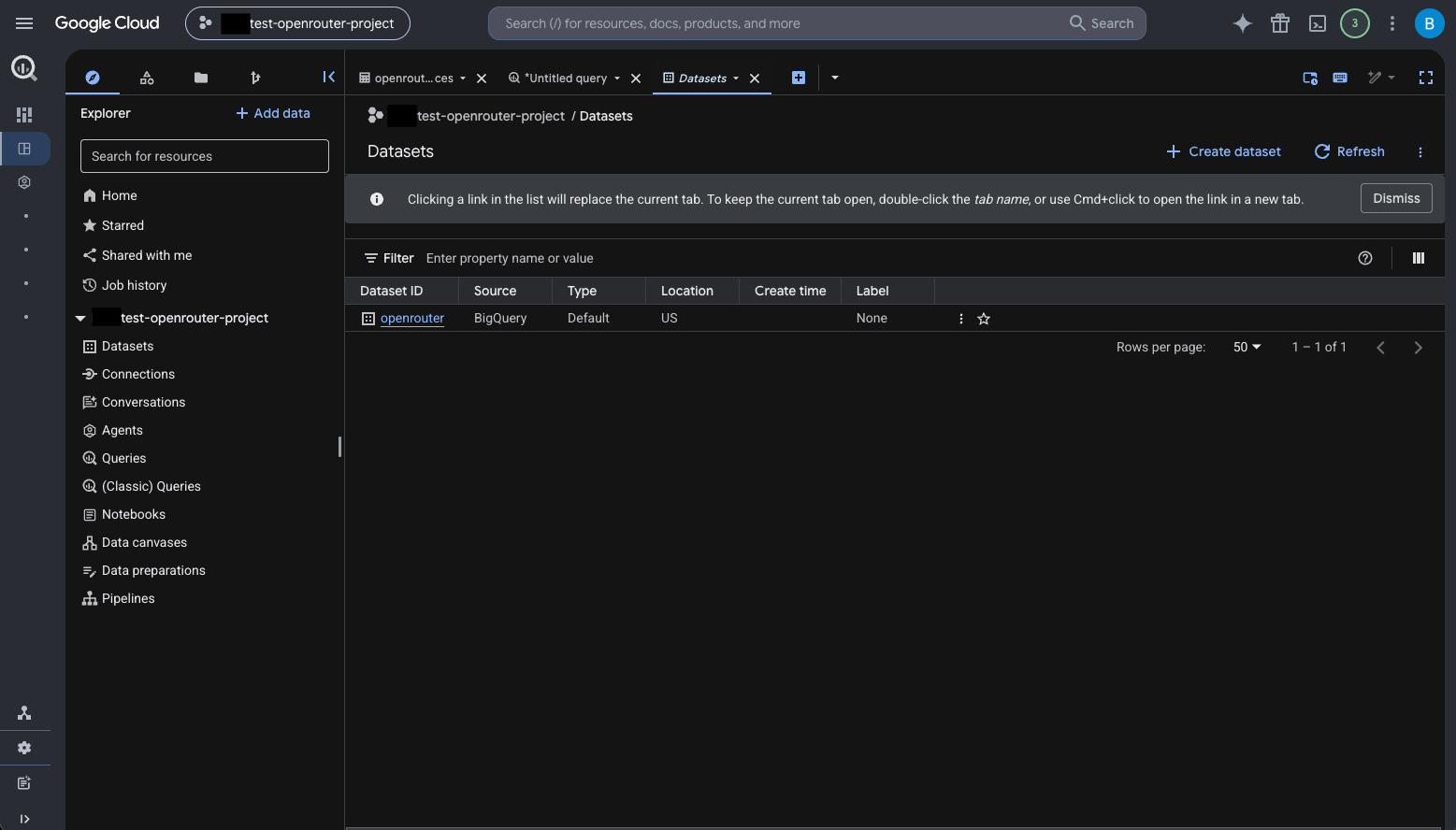
1. Open **BigQuery > Explorer**, select the project, and choose **Create dataset**.
2. Choose a dataset ID, such as `openrouter`.
3. Choose the dataset location carefully. A dataset's region cannot be changed after creation, so pick a location allowed by your data-residency requirements.
 ## Step 3: Create the traces table
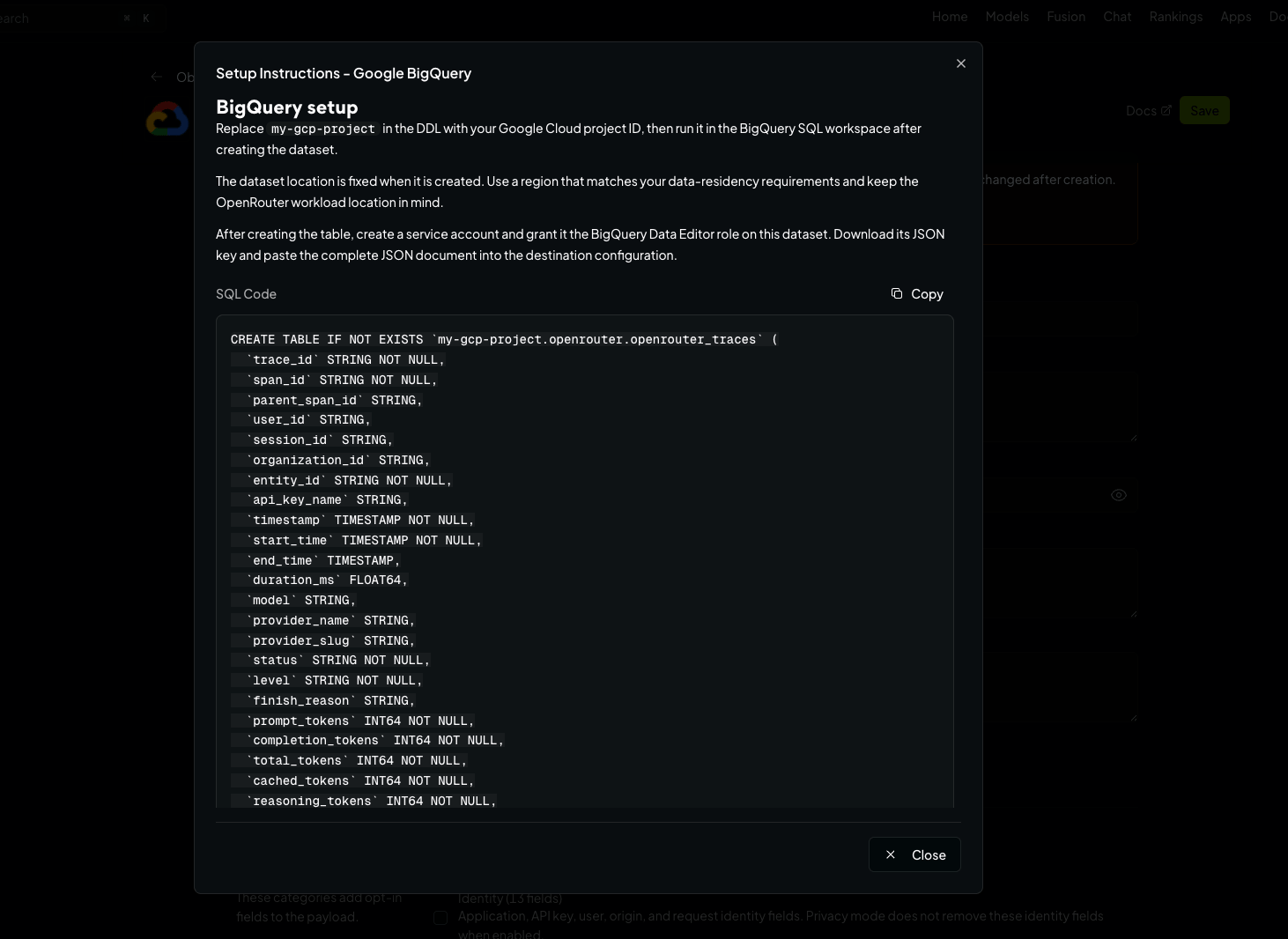
Create the `openrouter_traces` table in your dataset. You can find the exact SQL in the OpenRouter dashboard when configuring the destination — click **View Setup Instructions**. Replace `my-gcp-project` in the DDL with your project ID (and the dataset or table IDs if you chose different ones), then run it in the BigQuery SQL workspace:
## Step 3: Create the traces table
Create the `openrouter_traces` table in your dataset. You can find the exact SQL in the OpenRouter dashboard when configuring the destination — click **View Setup Instructions**. Replace `my-gcp-project` in the DDL with your project ID (and the dataset or table IDs if you chose different ones), then run it in the BigQuery SQL workspace:
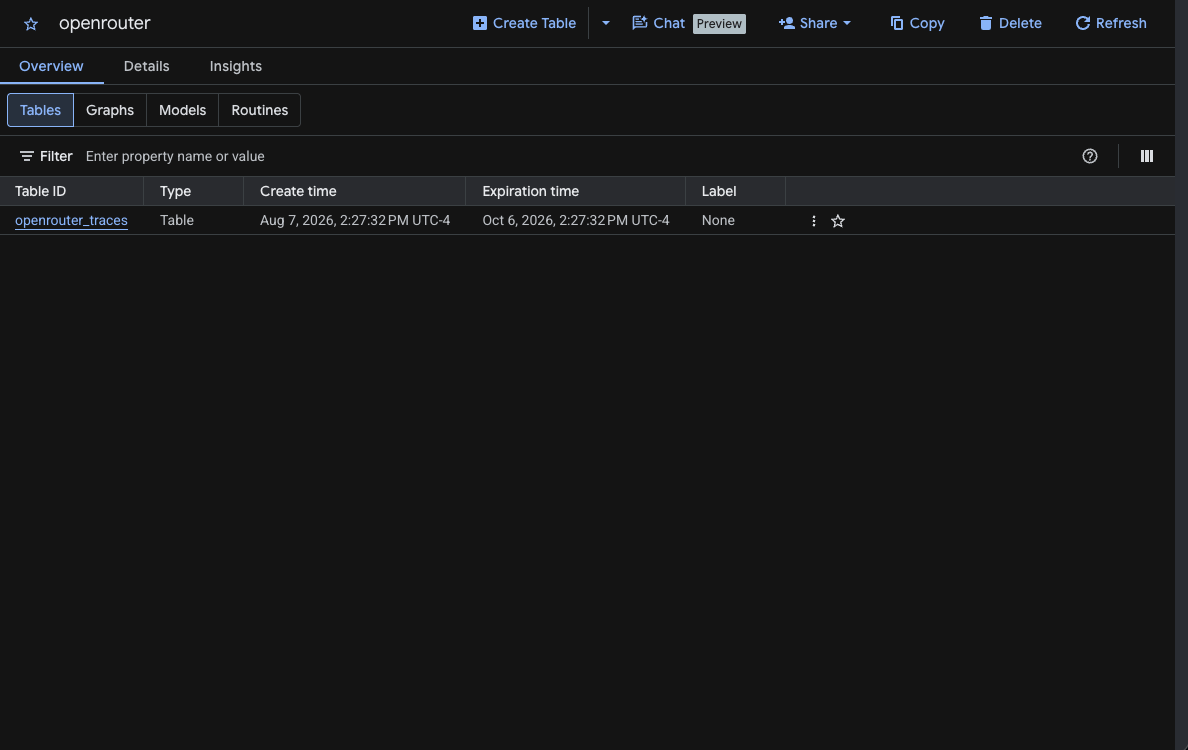
 Once created, the table appears in your dataset:
 ## Step 4: Create a service account
1. Open **IAM & Admin > Service Accounts** in the project and click **Create service account** (e.g., `openrouter-broadcast`).
2. Grant it the **BigQuery Data Editor** role on the trace dataset (not at the organization or project level): open the dataset's menu in BigQuery, choose **Share > Permissions**, add the service account email, and select **BigQuery Data Editor**. Do not grant BigQuery Job User — this destination uses streaming inserts and does not create query jobs.
3. Open the service account's **Keys** tab, choose **Add key > Create new key**, select **JSON**, and download the key.
Keep the downloaded key private. It contains a private signing key and should not be committed to source control.
## Step 5: Enable Broadcast in OpenRouter
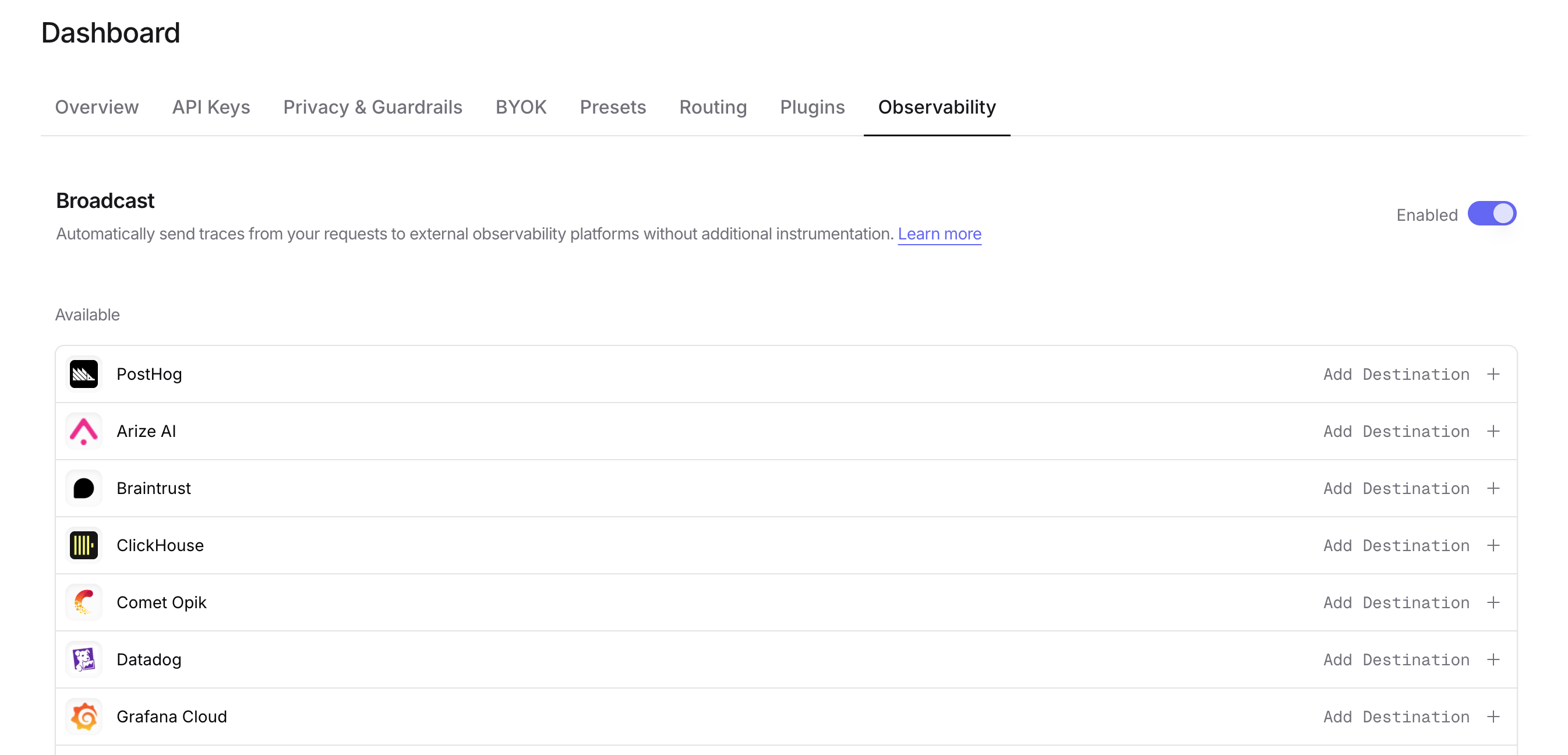
Go to [Settings > Observability](https://openrouter.ai/settings/observability) and toggle **Enable Broadcast**.
## Step 4: Create a service account
1. Open **IAM & Admin > Service Accounts** in the project and click **Create service account** (e.g., `openrouter-broadcast`).
2. Grant it the **BigQuery Data Editor** role on the trace dataset (not at the organization or project level): open the dataset's menu in BigQuery, choose **Share > Permissions**, add the service account email, and select **BigQuery Data Editor**. Do not grant BigQuery Job User — this destination uses streaming inserts and does not create query jobs.
3. Open the service account's **Keys** tab, choose **Add key > Create new key**, select **JSON**, and download the key.
Keep the downloaded key private. It contains a private signing key and should not be committed to source control.
## Step 5: Enable Broadcast in OpenRouter
Go to [Settings > Observability](https://openrouter.ai/settings/observability) and toggle **Enable Broadcast**.
 ## Step 6: Configure BigQuery
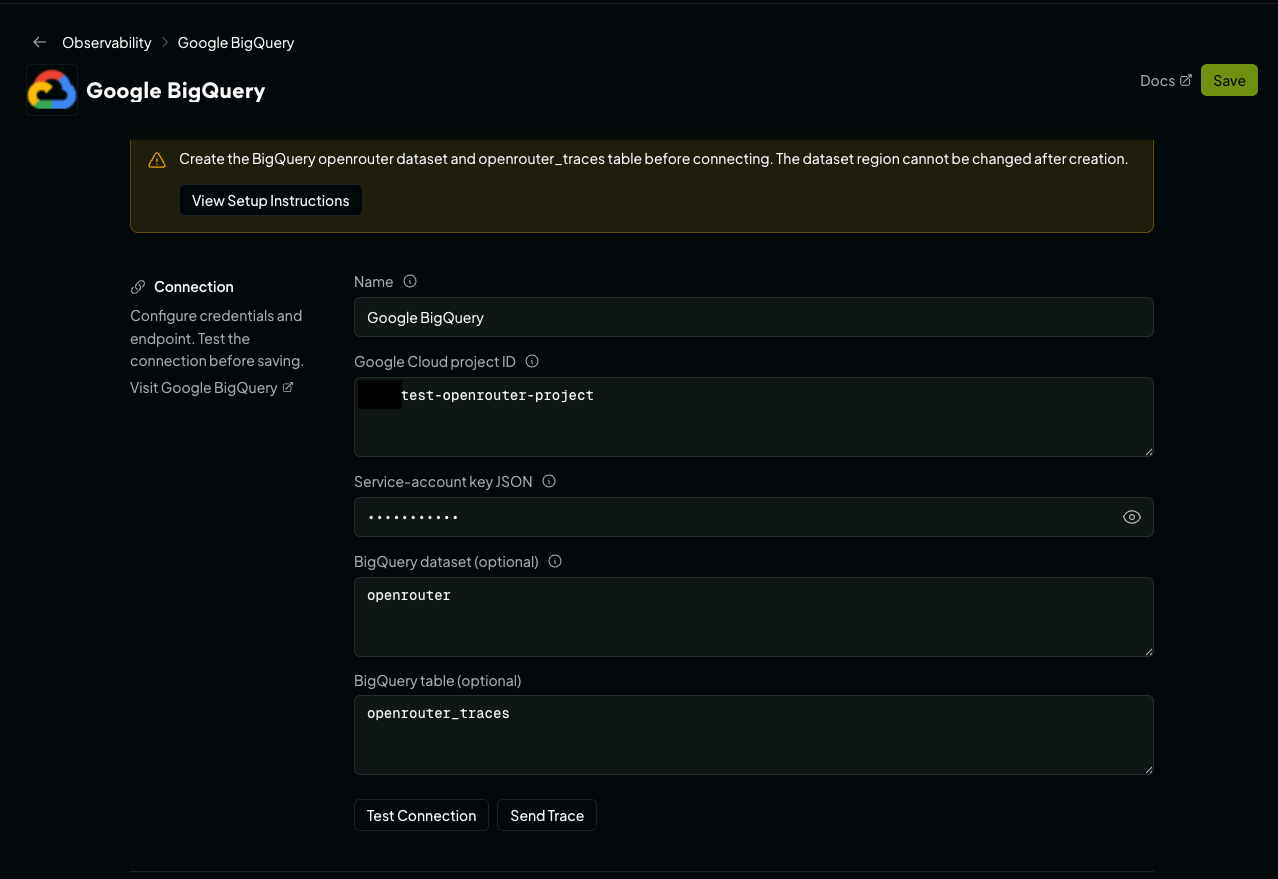
Click the edit icon next to **Google BigQuery** and enter:
## Step 6: Configure BigQuery
Click the edit icon next to **Google BigQuery** and enter:
 * **Google Cloud project ID**: The project ID containing the dataset.
* **Service-account key JSON**: The complete contents of the downloaded JSON key file.
* **BigQuery dataset**: The dataset ID created above (default: `openrouter`).
* **BigQuery table**: The table ID created above (default: `openrouter_traces`).
## Step 7: Test and save
Click **Test Connection** to verify the setup. The connection test reads the table's metadata to verify the project, dataset, table, and credentials, then checks that the credentials hold the row-insert permission, so read-only access fails the test rather than failing on every later trace. The configuration only saves if the test passes.
## Step 8: Send a test trace
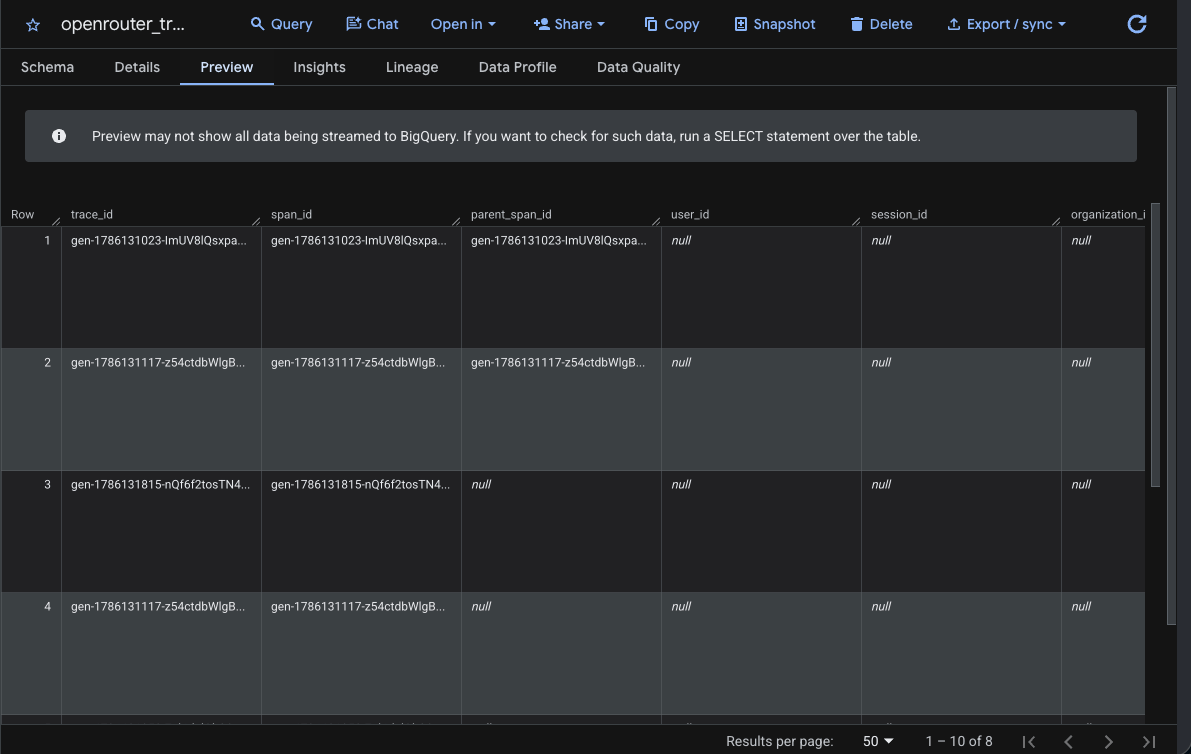
Click **Send Trace**, or make an API request through OpenRouter, and query your BigQuery table to verify the trace was received:
```sql lines theme={null}
SELECT
trace_id,
span_id,
timestamp,
model,
status,
total_tokens,
total_cost
FROM `my-gcp-project.openrouter.openrouter_traces`
ORDER BY timestamp DESC
LIMIT 20;
```
* **Google Cloud project ID**: The project ID containing the dataset.
* **Service-account key JSON**: The complete contents of the downloaded JSON key file.
* **BigQuery dataset**: The dataset ID created above (default: `openrouter`).
* **BigQuery table**: The table ID created above (default: `openrouter_traces`).
## Step 7: Test and save
Click **Test Connection** to verify the setup. The connection test reads the table's metadata to verify the project, dataset, table, and credentials, then checks that the credentials hold the row-insert permission, so read-only access fails the test rather than failing on every later trace. The configuration only saves if the test passes.
## Step 8: Send a test trace
Click **Send Trace**, or make an API request through OpenRouter, and query your BigQuery table to verify the trace was received:
```sql lines theme={null}
SELECT
trace_id,
span_id,
timestamp,
model,
status,
total_tokens,
total_cost
FROM `my-gcp-project.openrouter.openrouter_traces`
ORDER BY timestamp DESC
LIMIT 20;
```
 ## Example queries
### Cost analysis by model
```sql lines theme={null}
SELECT
DATE(timestamp) as day,
model,
SUM(total_cost) as total_cost,
SUM(total_tokens) as total_tokens,
COUNT(*) as request_count
FROM `my-gcp-project.openrouter.openrouter_traces`
WHERE timestamp >= TIMESTAMP_SUB(CURRENT_TIMESTAMP(), INTERVAL 30 DAY)
AND status = 'ok'
GROUP BY day, model
ORDER BY day DESC, total_cost DESC;
```
### User activity analysis
```sql lines theme={null}
SELECT
user_id,
COUNT(DISTINCT trace_id) as trace_count,
COUNT(DISTINCT session_id) as session_count,
SUM(total_tokens) as total_tokens,
SUM(total_cost) as total_cost,
AVG(duration_ms) as avg_duration_ms
FROM `my-gcp-project.openrouter.openrouter_traces`
WHERE timestamp >= TIMESTAMP_SUB(CURRENT_TIMESTAMP(), INTERVAL 7 DAY)
GROUP BY user_id
ORDER BY total_cost DESC;
```
### Error analysis
```sql lines theme={null}
SELECT
trace_id,
timestamp,
model,
level,
finish_reason,
metadata,
input,
output
FROM `my-gcp-project.openrouter.openrouter_traces`
WHERE status = 'error'
AND timestamp >= TIMESTAMP_SUB(CURRENT_TIMESTAMP(), INTERVAL 1 HOUR)
ORDER BY timestamp DESC;
```
### Provider performance comparison
```sql lines theme={null}
SELECT
provider_name,
model,
AVG(duration_ms) as avg_duration_ms,
APPROX_QUANTILES(duration_ms, 100)[OFFSET(50)] as p50_duration_ms,
APPROX_QUANTILES(duration_ms, 100)[OFFSET(95)] as p95_duration_ms,
COUNT(*) as request_count
FROM `my-gcp-project.openrouter.openrouter_traces`
WHERE timestamp >= TIMESTAMP_SUB(CURRENT_TIMESTAMP(), INTERVAL 7 DAY)
AND status = 'ok'
GROUP BY provider_name, model
HAVING request_count >= 10
ORDER BY avg_duration_ms;
```
### Usage by API key
```sql lines theme={null}
SELECT
api_key_name,
COUNT(DISTINCT trace_id) as trace_count,
SUM(total_cost) as total_cost,
SUM(prompt_tokens) as prompt_tokens,
SUM(completion_tokens) as completion_tokens
FROM `my-gcp-project.openrouter.openrouter_traces`
WHERE timestamp >= TIMESTAMP_SUB(CURRENT_TIMESTAMP(), INTERVAL 30 DAY)
GROUP BY api_key_name
ORDER BY total_cost DESC;
```
### Accessing JSON columns
The `attributes`, `input`, `output`, `metadata`, `model_parameters`, and `resource_attributes` columns are `JSON` typed. Use BigQuery's JSON functions to query nested fields:
```sql lines theme={null}
SELECT
trace_id,
JSON_VALUE(metadata, '$.custom_field') as custom_value,
JSON_VALUE(attributes, '$."gen_ai.request.model"') as requested_model
FROM `my-gcp-project.openrouter.openrouter_traces`
WHERE JSON_VALUE(metadata, '$.custom_field') IS NOT NULL;
```
To parse input messages:
```sql lines theme={null}
SELECT
trace_id,
JSON_VALUE(input, '$.messages[0].role') as first_message_role,
JSON_VALUE(input, '$.messages[0].content') as first_message_content
FROM `my-gcp-project.openrouter.openrouter_traces`
LIMIT 10;
```
## Schema design
### Typed columns
The schema extracts commonly-queried fields as typed columns for efficient filtering and aggregation:
* **Identifiers**: `trace_id`, `user_id`, `session_id`, etc.
* **Timestamps**: `TIMESTAMP` columns for time-series analysis
* **Model Info**: For cost and performance analysis
* **Metrics**: Tokens and costs for billing
### JSON columns
Less commonly-accessed and variable-structure data is stored in `JSON` columns:
* **attributes**: Full OTEL attribute set
* **input/output**: Variable message structures
* **metadata**: User-defined key-values
* **model\_parameters**: Model-specific configurations
The `tags` column is a repeated `STRING` column (`ARRAY`). Use BigQuery's `JSON_VALUE` and `JSON_QUERY` functions to query the JSON fields.
## Custom Metadata
Custom metadata from the `trace` field is stored in the `metadata` JSON column. You can query it using BigQuery's JSON functions.
### Supported Metadata Keys
| Key | BigQuery Mapping | Description |
| ----------------- | ----------------------------------- | ------------------------------------ |
| `trace_id` | `trace_id` column / `metadata` JSON | Custom trace identifier for grouping |
| `trace_name` | `metadata` JSON | Custom name for the trace |
| `span_name` | `metadata` JSON | Name for intermediate spans |
| `generation_name` | `metadata` JSON | Name for the LLM generation |
### Example
```json lines theme={null}
{
"model": "openai/gpt-4o",
"messages": [{ "role": "user", "content": "Forecast next quarter revenue..." }],
"user": "user_12345",
"session_id": "session_abc",
"trace": {
"trace_name": "Revenue Forecasting",
"generation_name": "Generate Forecast",
"department": "finance",
"quarter": "Q2-2026",
"model_version": "v3"
}
}
```
### Querying Custom Metadata
```sql lines theme={null}
SELECT
trace_id,
JSON_VALUE(metadata, '$.department') as department,
JSON_VALUE(metadata, '$.quarter') as quarter,
JSON_VALUE(metadata, '$.model_version') as model_version,
total_cost,
total_tokens
FROM `my-gcp-project.openrouter.openrouter_traces`
WHERE JSON_VALUE(metadata, '$.department') IS NOT NULL
ORDER BY timestamp DESC;
```
### Additional Context
* The `user` field maps to the `user_id` typed column
* The `session_id` field maps to the `session_id` typed column
* All custom metadata keys from `trace` are stored in the `metadata` JSON column for flexible querying
## Troubleshooting
* **Project not found or permission denied**: Confirm that the configured project ID is the project containing the dataset and that the service account belongs to the expected project.
* **Table not found**: Confirm the dataset and table IDs and that the table was created in the configured dataset location.
* **403 permission denied**: Grant the service account **BigQuery Data Editor** on the dataset. Project-level access may be restricted by organization policy, so verify the dataset permission directly.
* **400 invalid or schema mismatch**: Compare the table schema with the DDL from the setup instructions. In particular, timestamps must be `TIMESTAMP`, nested trace fields must be `JSON`, and `tags` must be `ARRAY`.
## Additional resources
* [BigQuery Documentation](https://cloud.google.com/bigquery/docs)
* [Streaming Data into BigQuery](https://cloud.google.com/bigquery/docs/streaming-data-into-bigquery)
* [JSON Functions in GoogleSQL](https://cloud.google.com/bigquery/docs/reference/standard-sql/json_functions)
## Privacy Mode
When [Privacy Mode](/docs/guides/features/broadcast#privacy-mode) is enabled for this destination, prompt and completion content is excluded from traces. All other trace data — token usage, costs, timing, model information, and custom metadata — is still sent normally. See [Privacy Mode](/docs/guides/features/broadcast#privacy-mode) for details.
## Example queries
### Cost analysis by model
```sql lines theme={null}
SELECT
DATE(timestamp) as day,
model,
SUM(total_cost) as total_cost,
SUM(total_tokens) as total_tokens,
COUNT(*) as request_count
FROM `my-gcp-project.openrouter.openrouter_traces`
WHERE timestamp >= TIMESTAMP_SUB(CURRENT_TIMESTAMP(), INTERVAL 30 DAY)
AND status = 'ok'
GROUP BY day, model
ORDER BY day DESC, total_cost DESC;
```
### User activity analysis
```sql lines theme={null}
SELECT
user_id,
COUNT(DISTINCT trace_id) as trace_count,
COUNT(DISTINCT session_id) as session_count,
SUM(total_tokens) as total_tokens,
SUM(total_cost) as total_cost,
AVG(duration_ms) as avg_duration_ms
FROM `my-gcp-project.openrouter.openrouter_traces`
WHERE timestamp >= TIMESTAMP_SUB(CURRENT_TIMESTAMP(), INTERVAL 7 DAY)
GROUP BY user_id
ORDER BY total_cost DESC;
```
### Error analysis
```sql lines theme={null}
SELECT
trace_id,
timestamp,
model,
level,
finish_reason,
metadata,
input,
output
FROM `my-gcp-project.openrouter.openrouter_traces`
WHERE status = 'error'
AND timestamp >= TIMESTAMP_SUB(CURRENT_TIMESTAMP(), INTERVAL 1 HOUR)
ORDER BY timestamp DESC;
```
### Provider performance comparison
```sql lines theme={null}
SELECT
provider_name,
model,
AVG(duration_ms) as avg_duration_ms,
APPROX_QUANTILES(duration_ms, 100)[OFFSET(50)] as p50_duration_ms,
APPROX_QUANTILES(duration_ms, 100)[OFFSET(95)] as p95_duration_ms,
COUNT(*) as request_count
FROM `my-gcp-project.openrouter.openrouter_traces`
WHERE timestamp >= TIMESTAMP_SUB(CURRENT_TIMESTAMP(), INTERVAL 7 DAY)
AND status = 'ok'
GROUP BY provider_name, model
HAVING request_count >= 10
ORDER BY avg_duration_ms;
```
### Usage by API key
```sql lines theme={null}
SELECT
api_key_name,
COUNT(DISTINCT trace_id) as trace_count,
SUM(total_cost) as total_cost,
SUM(prompt_tokens) as prompt_tokens,
SUM(completion_tokens) as completion_tokens
FROM `my-gcp-project.openrouter.openrouter_traces`
WHERE timestamp >= TIMESTAMP_SUB(CURRENT_TIMESTAMP(), INTERVAL 30 DAY)
GROUP BY api_key_name
ORDER BY total_cost DESC;
```
### Accessing JSON columns
The `attributes`, `input`, `output`, `metadata`, `model_parameters`, and `resource_attributes` columns are `JSON` typed. Use BigQuery's JSON functions to query nested fields:
```sql lines theme={null}
SELECT
trace_id,
JSON_VALUE(metadata, '$.custom_field') as custom_value,
JSON_VALUE(attributes, '$."gen_ai.request.model"') as requested_model
FROM `my-gcp-project.openrouter.openrouter_traces`
WHERE JSON_VALUE(metadata, '$.custom_field') IS NOT NULL;
```
To parse input messages:
```sql lines theme={null}
SELECT
trace_id,
JSON_VALUE(input, '$.messages[0].role') as first_message_role,
JSON_VALUE(input, '$.messages[0].content') as first_message_content
FROM `my-gcp-project.openrouter.openrouter_traces`
LIMIT 10;
```
## Schema design
### Typed columns
The schema extracts commonly-queried fields as typed columns for efficient filtering and aggregation:
* **Identifiers**: `trace_id`, `user_id`, `session_id`, etc.
* **Timestamps**: `TIMESTAMP` columns for time-series analysis
* **Model Info**: For cost and performance analysis
* **Metrics**: Tokens and costs for billing
### JSON columns
Less commonly-accessed and variable-structure data is stored in `JSON` columns:
* **attributes**: Full OTEL attribute set
* **input/output**: Variable message structures
* **metadata**: User-defined key-values
* **model\_parameters**: Model-specific configurations
The `tags` column is a repeated `STRING` column (`ARRAY`). Use BigQuery's `JSON_VALUE` and `JSON_QUERY` functions to query the JSON fields.
## Custom Metadata
Custom metadata from the `trace` field is stored in the `metadata` JSON column. You can query it using BigQuery's JSON functions.
### Supported Metadata Keys
| Key | BigQuery Mapping | Description |
| ----------------- | ----------------------------------- | ------------------------------------ |
| `trace_id` | `trace_id` column / `metadata` JSON | Custom trace identifier for grouping |
| `trace_name` | `metadata` JSON | Custom name for the trace |
| `span_name` | `metadata` JSON | Name for intermediate spans |
| `generation_name` | `metadata` JSON | Name for the LLM generation |
### Example
```json lines theme={null}
{
"model": "openai/gpt-4o",
"messages": [{ "role": "user", "content": "Forecast next quarter revenue..." }],
"user": "user_12345",
"session_id": "session_abc",
"trace": {
"trace_name": "Revenue Forecasting",
"generation_name": "Generate Forecast",
"department": "finance",
"quarter": "Q2-2026",
"model_version": "v3"
}
}
```
### Querying Custom Metadata
```sql lines theme={null}
SELECT
trace_id,
JSON_VALUE(metadata, '$.department') as department,
JSON_VALUE(metadata, '$.quarter') as quarter,
JSON_VALUE(metadata, '$.model_version') as model_version,
total_cost,
total_tokens
FROM `my-gcp-project.openrouter.openrouter_traces`
WHERE JSON_VALUE(metadata, '$.department') IS NOT NULL
ORDER BY timestamp DESC;
```
### Additional Context
* The `user` field maps to the `user_id` typed column
* The `session_id` field maps to the `session_id` typed column
* All custom metadata keys from `trace` are stored in the `metadata` JSON column for flexible querying
## Troubleshooting
* **Project not found or permission denied**: Confirm that the configured project ID is the project containing the dataset and that the service account belongs to the expected project.
* **Table not found**: Confirm the dataset and table IDs and that the table was created in the configured dataset location.
* **403 permission denied**: Grant the service account **BigQuery Data Editor** on the dataset. Project-level access may be restricted by organization policy, so verify the dataset permission directly.
* **400 invalid or schema mismatch**: Compare the table schema with the DDL from the setup instructions. In particular, timestamps must be `TIMESTAMP`, nested trace fields must be `JSON`, and `tags` must be `ARRAY`.
## Additional resources
* [BigQuery Documentation](https://cloud.google.com/bigquery/docs)
* [Streaming Data into BigQuery](https://cloud.google.com/bigquery/docs/streaming-data-into-bigquery)
* [JSON Functions in GoogleSQL](https://cloud.google.com/bigquery/docs/reference/standard-sql/json_functions)
## Privacy Mode
When [Privacy Mode](/docs/guides/features/broadcast#privacy-mode) is enabled for this destination, prompt and completion content is excluded from traces. All other trace data — token usage, costs, timing, model information, and custom metadata — is still sent normally. See [Privacy Mode](/docs/guides/features/broadcast#privacy-mode) for details.